The field indicated in the screenshot below is the header field of a content element I am referring to.
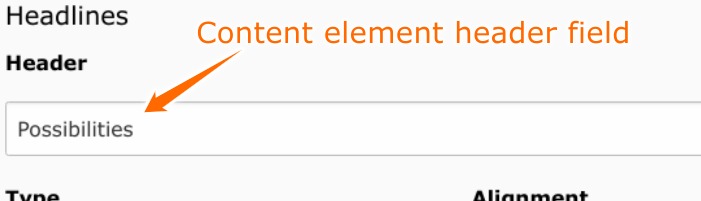
If this field has a value, it is automatically displayed in the frontend when the content element is rendered. But there are cases where one would like to set a value for this field in the backend but not show it in the frontend.
One would also like to hide this field in the frontend for:
- Only a specific content element.
- All content elements of a specific type. For example for all content elements where the CType(Content element Type) is text.
The solution to this is what I will be showing in this article. So, lets roll …..
Solution
From TYPO3 8, it is possible to override sections that have been set in the layout file used for rendering the templates of content elements.
This layout file by default is called Default.html unless it has been changed in the templates of your content elements.
Consider the screenshot below showing only a very small part of the Default.html layout file for content elements from the fluid_styled_content extension.

All rendered sections from this layout file where optional="true" will be used as fallback if these sections are not set in the template file used to render a content element of a specific CType(e.g Text.html, Textpic.html etc).
This therefore means that these sections can be overridden in the template files used to render the different content element types.
Consider the example below on overriding the Header section of the Default.html layout file.
Hiding the header field a specific content element of a specific CType
In this example, I want to hide the header field of a content element where the content element uid = 3 and the CType = text. Note that uid and CType are fields of the tt_content database table.
You can find the template used to render a CType by using the TypoScript Object Browser. See screenshot below for explanation.

I guess the screenshot above explains everything.
Assuming you have setup and are using a site packages to build your TYPO3 website (if not, go here on how to setup a sitepackage), and that the document root folder of my project is called public,
- Since our template file’s name is Text, go to the
public/typo3/sysext/fluid_styled_content/Resources/Private/Templates/folder. - Copy the
Text.htmlfile into thepublic/typo3conf/my_sitepackage/Resources/Private/Templates/ContentElements/folder.my_sitepackageis the name of my sitepackage folder. - In this file, set the
Headersection. Below is a code snippet example on how this can be done.
<f:layout name="Default" />
<f:section name="Header">
    <f:if condition="{data.uid} == 3">
        <f:then></f:then>
        <f:else>
            <f:render partial="Header/All" arguments="{_all}" />
        </f:else>
    </f:if>
</f:section>
<f:section name="Main">
    <f:format.html>{data.bodytext}</f:format.html>
</f:section>
You can add <f:debug>{_all}</f:debug> to either the Header or Main sections to view all the variables available for use in your template. With these variables you can have many different possibilities in overriding the different sections.
So that is it for this article. I hope I was able to explain as much as possible. But if u got any questions, just leave it in the comments and I will get back to you.
Tschüss !!!!
 Sigala's Blog
Leave a comment